DMS Product White Paper

Complete operational walkthrough for Modern DMS.

This page explains how the web app handles PDF intake, extraction, review, approval, archive commit, explorer discovery, and signing. It is written so a new user can open this URL and understand what the system does and why each screen exists.

Reduce manual checking

DMS extracts data from repeatable PDF formats so reviewers focus on exceptions and final verification.

Control archive quality

Validation, review, approval, and final commit steps prevent incomplete records from entering the archive.

Make documents searchable

Keywords, tags, extracted fields, raw text, branches, and dates make documents easier to recover later.

End-to-End Workflow

How one document moves through DMS

1Select tenant and branch
2Upload PDF batch
3Split documents by page range
4Run extraction script
5Validate output fields
6Review PDF and data
7Approve or reject
8Commit to archive
9Search or sign from Explorer
Modern DMS turns PDF operations into a controlled archive workflow. screen

Product Overview

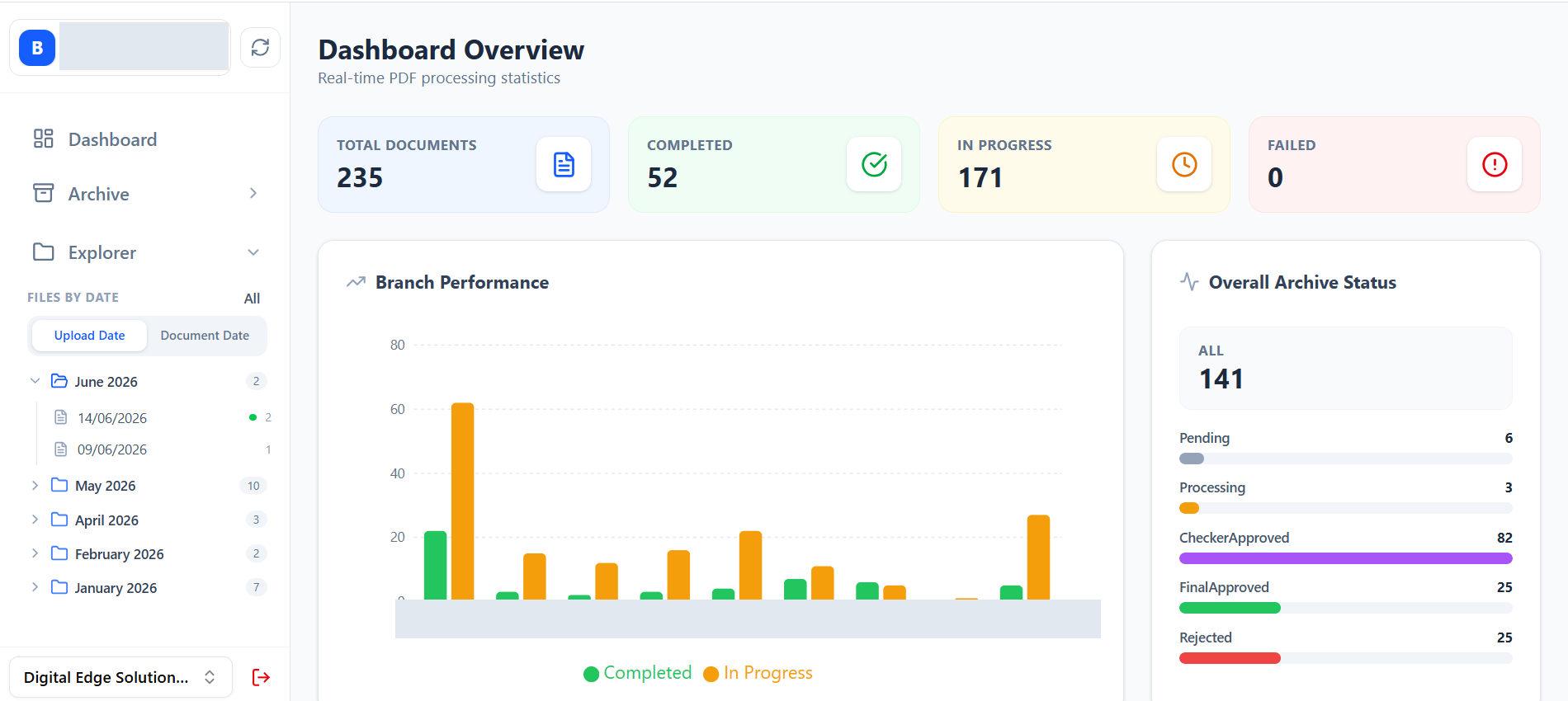
Screen 01

Modern DMS turns PDF operations into a controlled archive workflow.

The application is built for teams that receive many PDF documents, split them into business records, extract useful data, review the output, and preserve approved documents in a searchable archive.

Dashboard metrics show document volume, completed work, in-progress files, failed items, and branch performance.

The app keeps operational users focused on what needs review instead of searching through raw folders.

Archive and Explorer views separate document intake from long-term file discovery.

Purpose

A manager can open the dashboard and understand the live health of document processing.
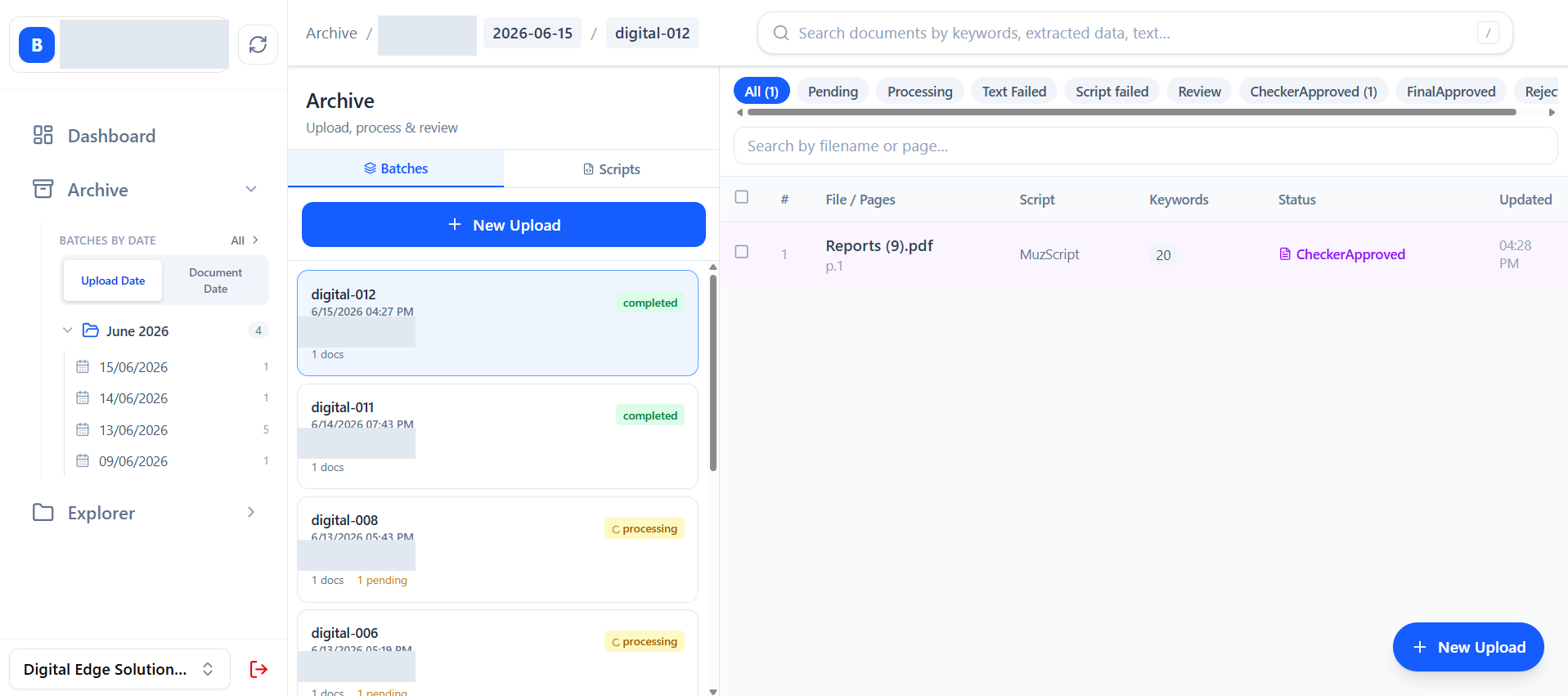
Archive is the main intake, processing, and review workspace. screen

Archive Workspace

Screen 03

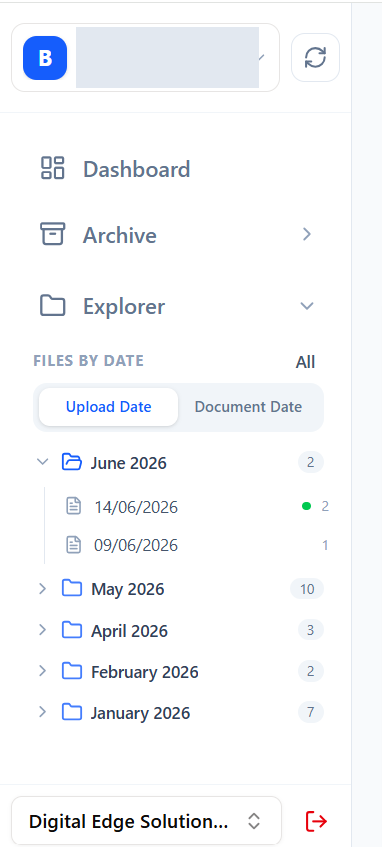
Archive is the main intake, processing, and review workspace.

The Archive screen combines upload controls, batch history, document search, document rows, and the review panel into one workspace.

Batches are grouped by date and status so users can resume work quickly.

The global search bar finds documents by keyword, extracted data, and raw OCR text.

The document list shows page ranges, scripts, keywords, and workflow status.

Purpose

An operator can upload PDFs, monitor processing, and open documents for review from one place.

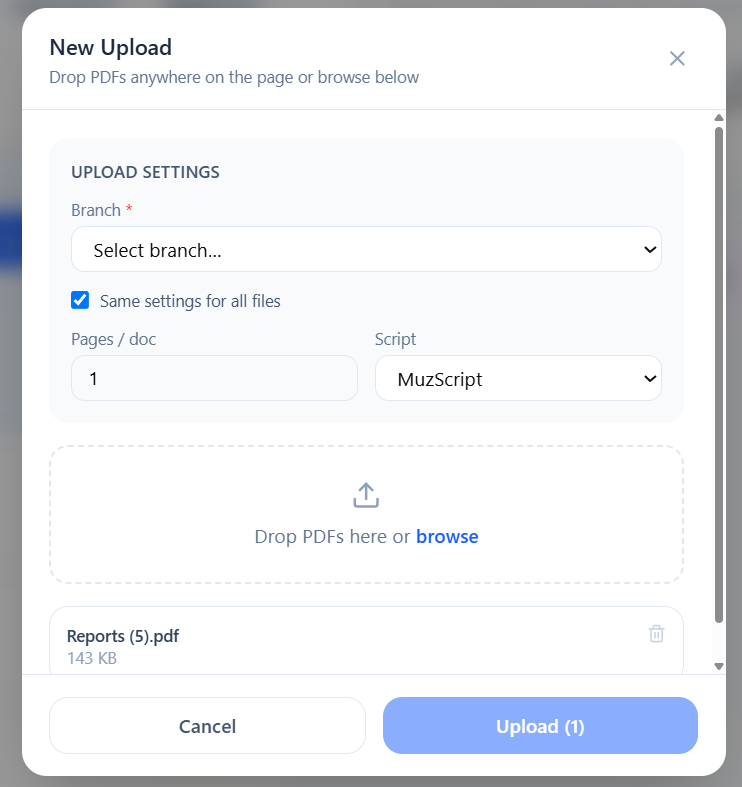
New Upload creates a processing batch with branch, split, and parser settings. screen

Upload & Batch Creation

Screen 04

New Upload creates a processing batch with branch, split, and parser settings.

When users upload PDFs, they choose the branch, pages per document, and extraction script. This tells DMS how to split the PDF and which parser should extract data.

Branch selection attaches the uploaded documents to the correct office.

Pages per document controls how multi-page PDFs are split into individual records.

Script selection decides which extraction logic is applied after upload.

Purpose

A raw PDF batch becomes structured work items ready for automated extraction.

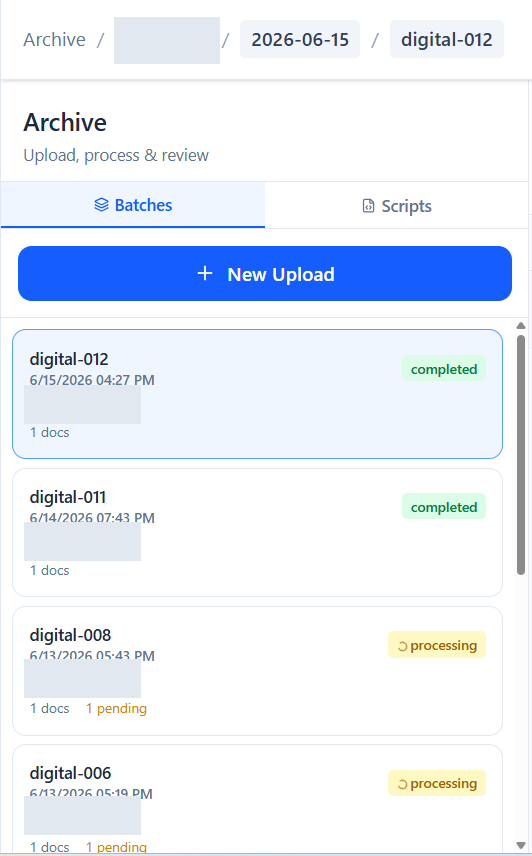
Batch cards show where each upload stands in the processing pipeline. screen

Batch Tracking

Screen 05

Batch cards show where each upload stands in the processing pipeline.

The batch list is a compact operational queue. It shows upload batches, their document counts, status, and review progress.

Processing, review, approval, archived, and failed counts make exceptions visible.

Selecting a batch loads the documents generated from that upload.

Date and status filters keep large archives manageable.

Purpose

Teams can prioritize batches that are waiting for review or approval.

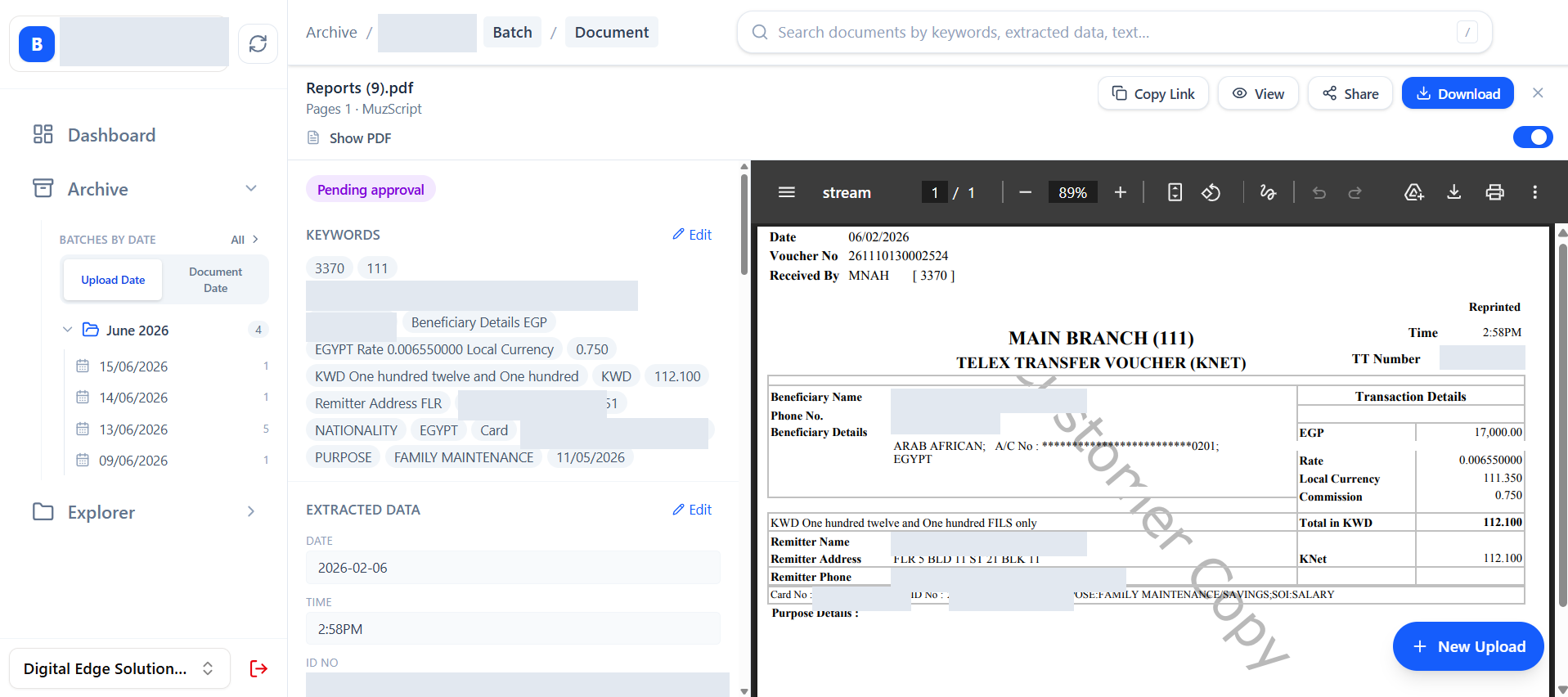
The document panel is where PDF evidence and extracted data meet. screen

Document Review

Screen 06

The document panel is where PDF evidence and extracted data meet.

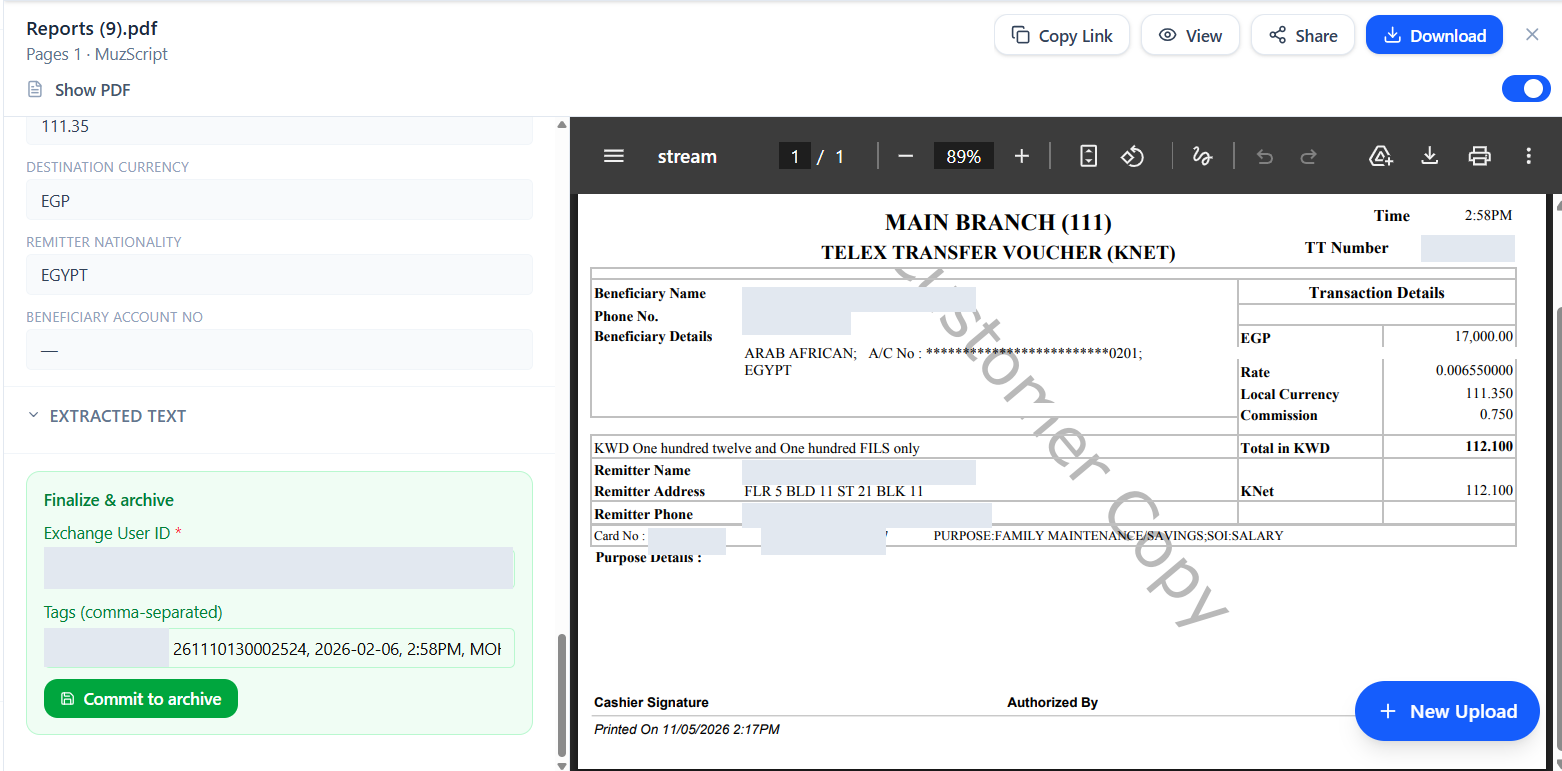
Reviewers open a document, compare the PDF with extracted fields, correct data if needed, and move the document to the next approval stage.

The PDF viewer keeps the source document visible during review.

Keywords summarize what the system detected from the document.

Extracted data fields can be edited before approval when the workflow allows it.

Purpose

Reviewers can validate automation output against the original PDF before approval.

Commit to archive saves approved records with identifiers and searchable tags. screen

Final Commit

Screen 07

Commit to archive saves approved records with identifiers and searchable tags.

After checker approval, the final archive step captures exchange user ID and tags. This converts reviewed work into a durable archive record.

Exchange user ID connects the archived document to the business system user or account.

Tags preserve searchable business context such as TT number, beneficiary, amount, date, or purpose.

Archived documents leave the active review queue and become part of the long-term repository.

Purpose

The organization gets a reviewed, traceable, and searchable archive item.

Scripts define how DMS reads different PDF formats. screen

Extraction Scripts

Screen 08

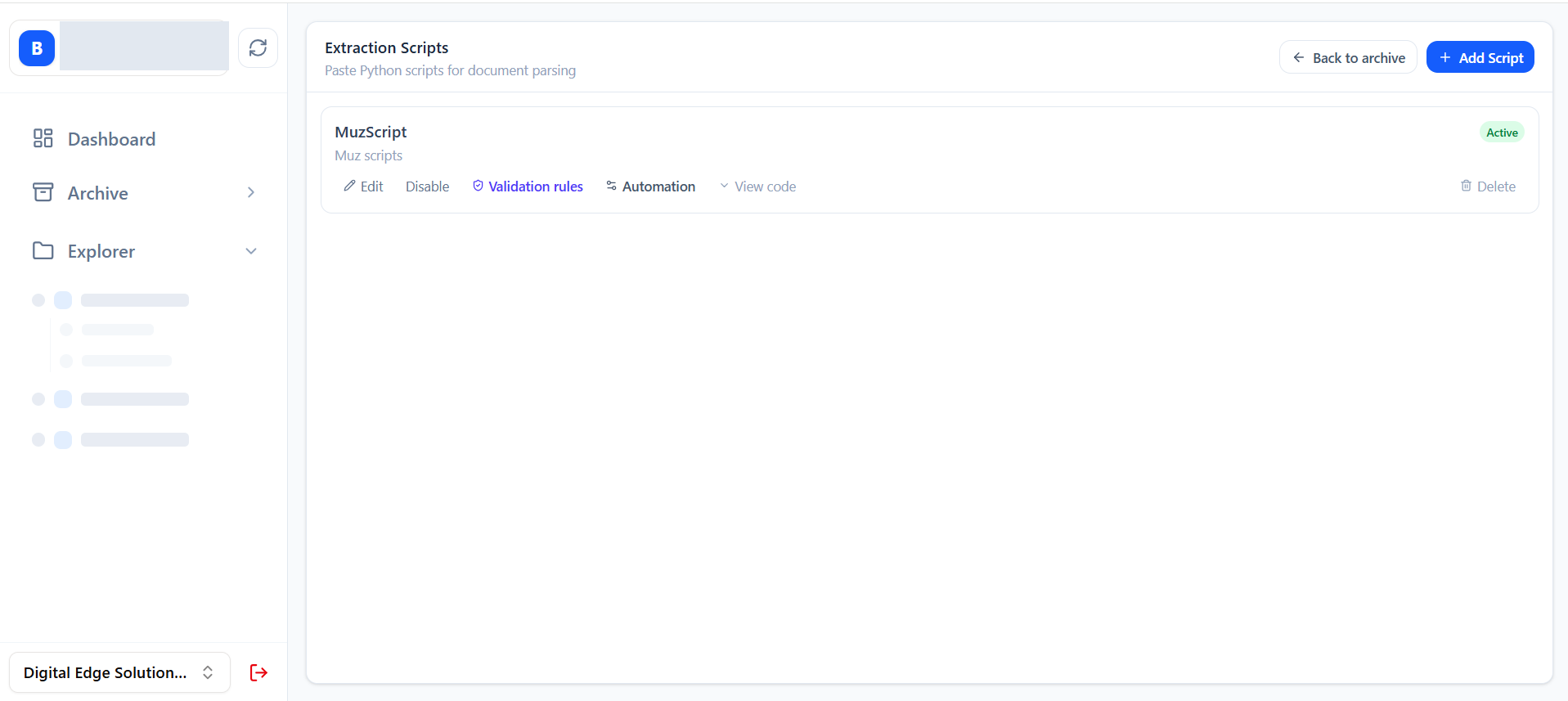
Scripts define how DMS reads different PDF formats.

Admins manage Python extraction scripts for each document type. A script tells the system which fields to read and return from a PDF.

Each script has a name, description, active state, and parser code.

Scripts are reusable across uploads, so operators only choose the right parser.

Admin controls prevent normal users from changing critical extraction logic unless allowed.

Purpose

Different document templates can be automated without changing the core application.

Validation rules turn parser output into controlled business data. screen

Validation Rules

Screen 09

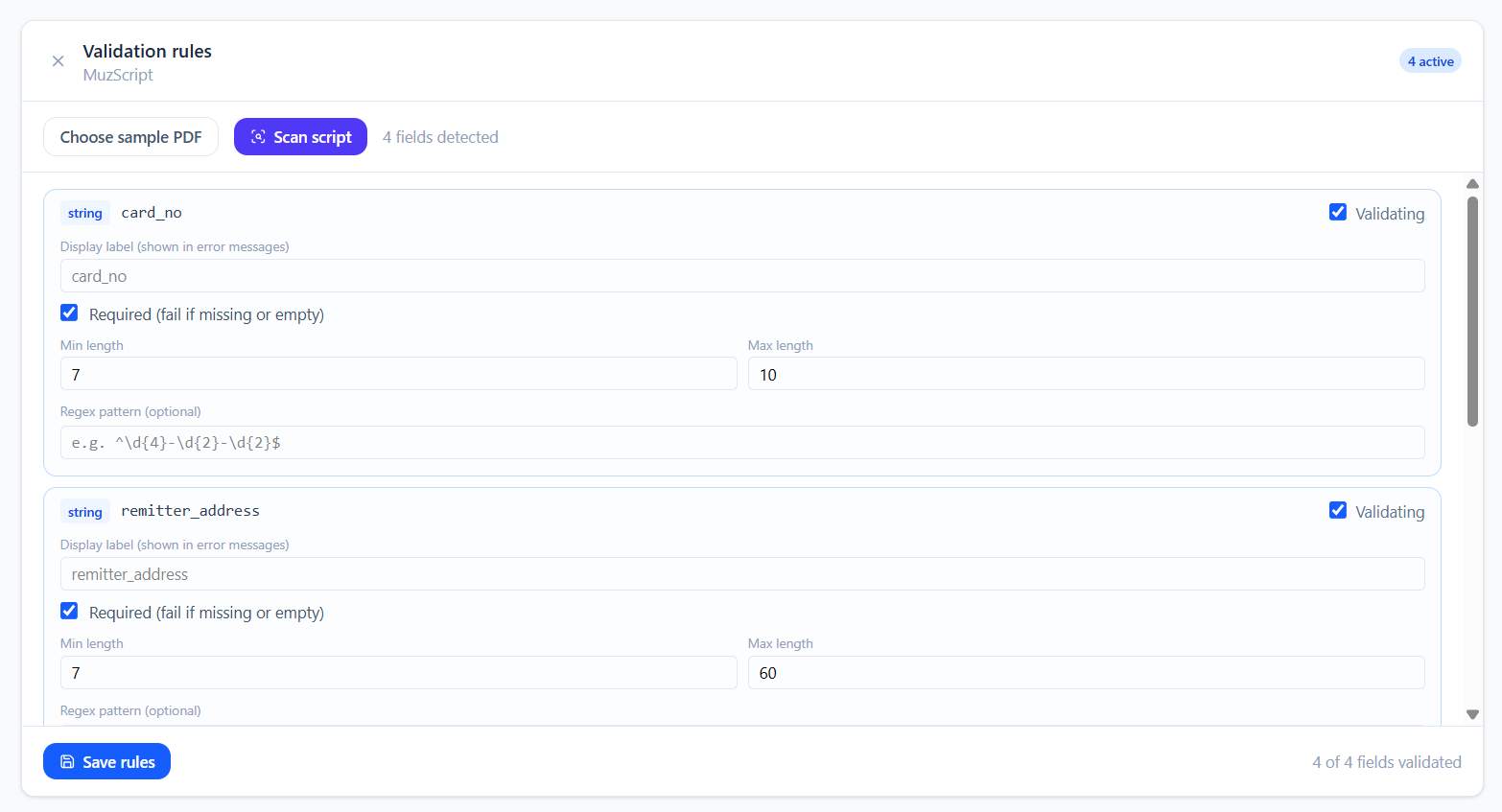
Validation rules turn parser output into controlled business data.

After a script detects fields, admins can decide which fields are required, what type they must be, and what constraints they must satisfy.

A sample PDF can be used to scan the script output schema.

Fields can be marked required or optional.

Rules such as regex, minimum length, maximum value, and minimum items catch bad extraction output early.

Purpose

Bad or incomplete extracted data can be stopped before it reaches approval.

Automation settings control signatures, delegation, and approval responsibilities. screen

Automation Setup

Screen 10

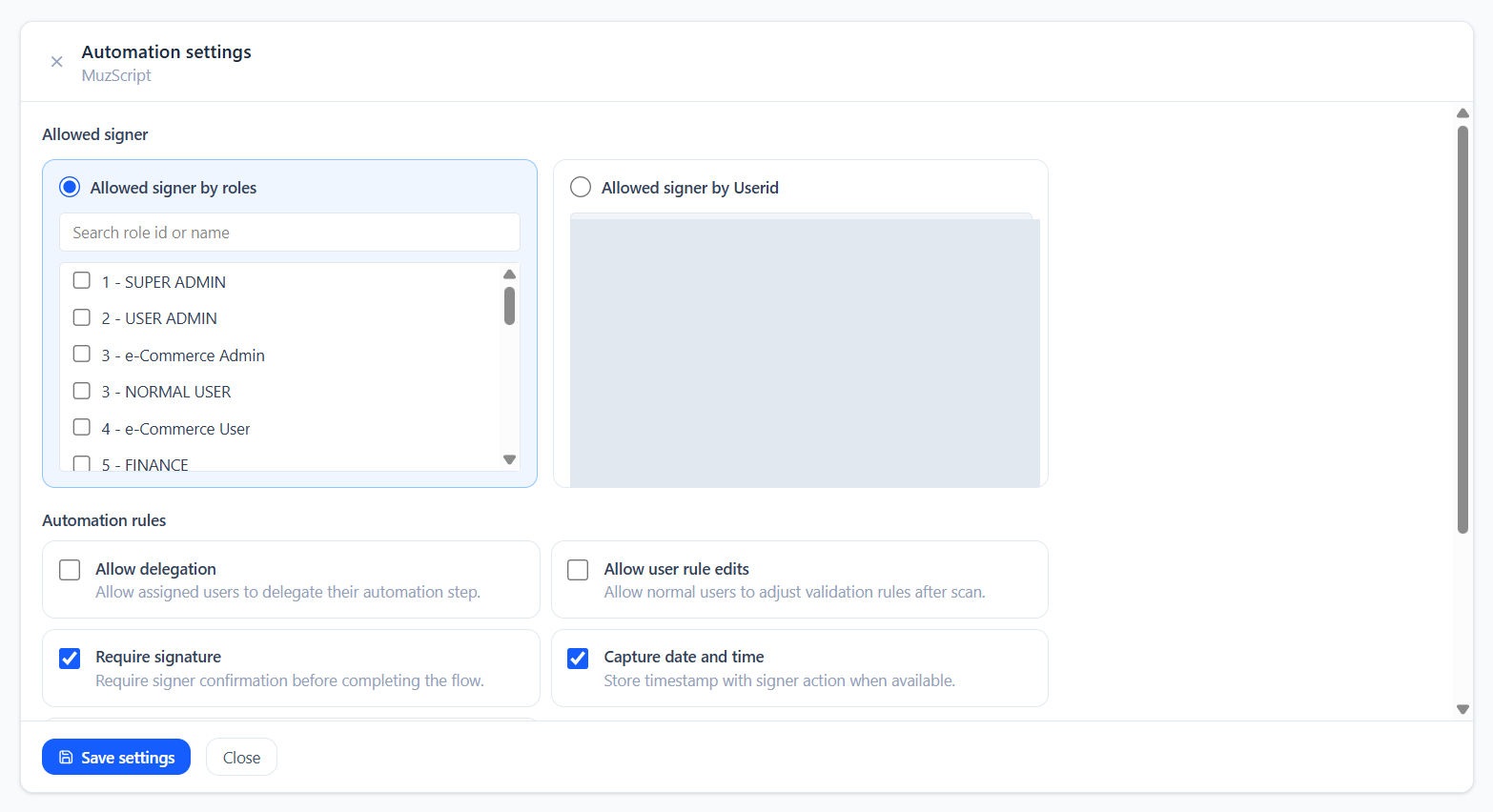
Automation settings control signatures, delegation, and approval responsibilities.

Automation settings define who can sign or act on a document, whether delegation is allowed, and whether date, time, or geolocation should be captured.

Signer assignment can be role-based or user-based.

Signature, timestamp, and geolocation controls support stronger audit trails.

Admin-only code and disable controls protect sensitive automation settings.

Purpose

Workflow permissions stay consistent with branch and role responsibilities.

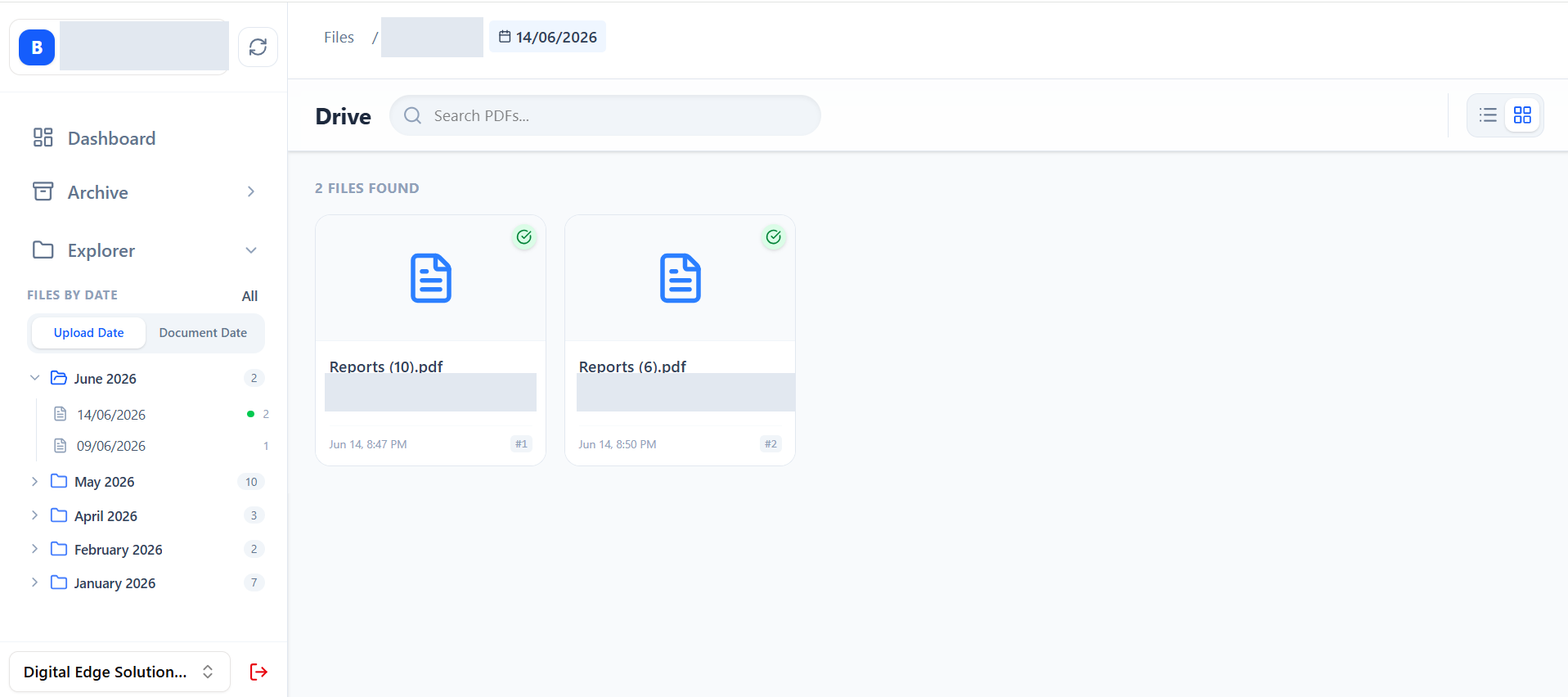
Explorer is the browsing layer for stored PDFs and archive-linked documents. screen

Explorer

Screen 11

Explorer is the browsing layer for stored PDFs and archive-linked documents.

Explorer gives users a familiar file-browser experience by branch and date, while preserving archive links and document metadata.

Users can browse PDFs by branch and date instead of batch.

Grid and list views support both quick scanning and detailed comparison.

Archive-origin documents can link back to the Archive DMS review context.

Purpose

Teams can find stored PDFs even after the archive workflow is complete.

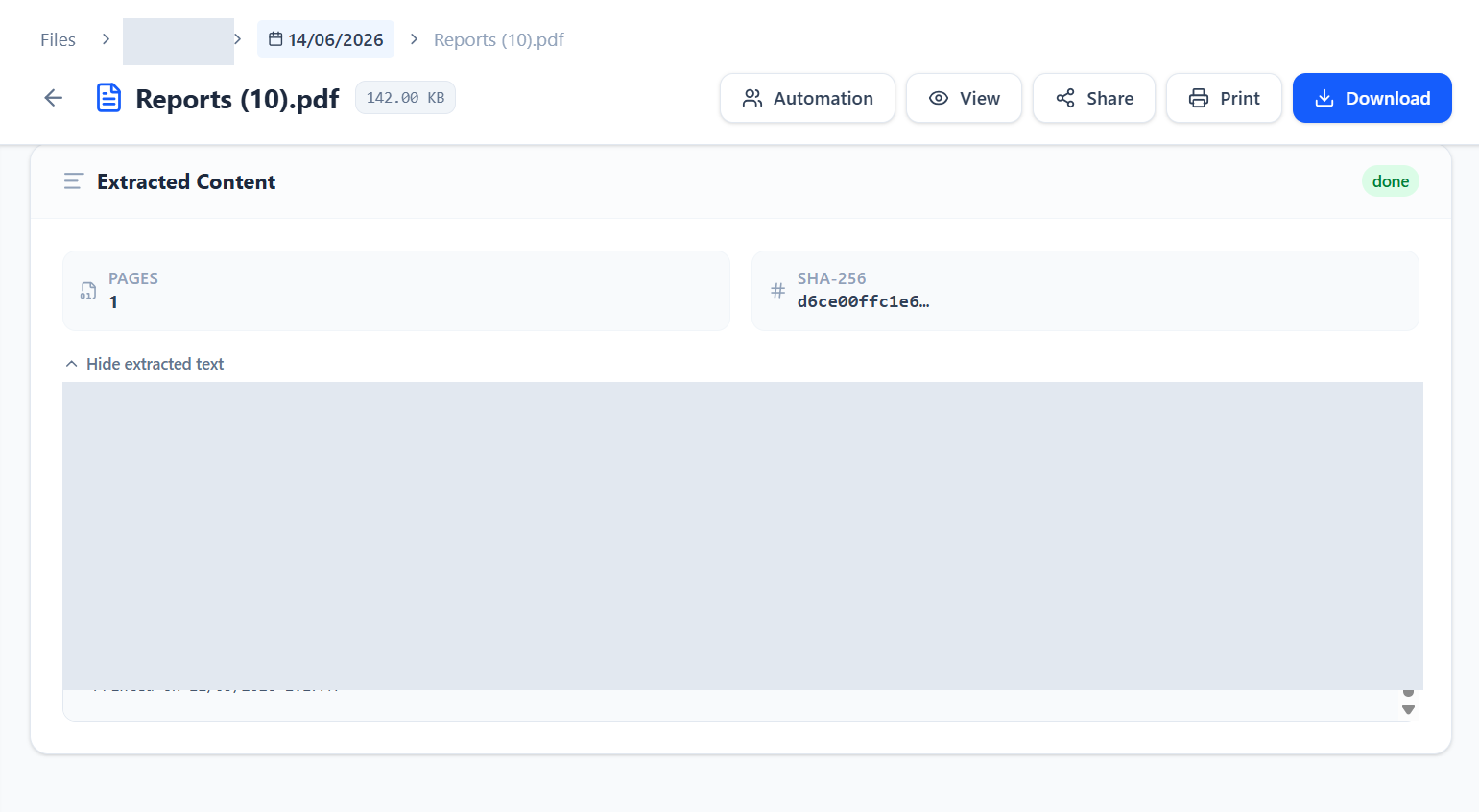
PDF details explain the signing and access history of a document. screen

PDF Details

Screen 12

PDF details explain the signing and access history of a document.

The detail view brings together statistics, customer contact data, automation state, access logs, timeline, metadata, and actions.

Users can see views, downloads, signature status, customer email, and WhatsApp details.

The timeline shows upload, token creation, notification, view, and signature events.

Access logs support audit review by time, IP address, event, and user/system source.

Purpose

A document owner can understand exactly what happened after a secure link was issued.

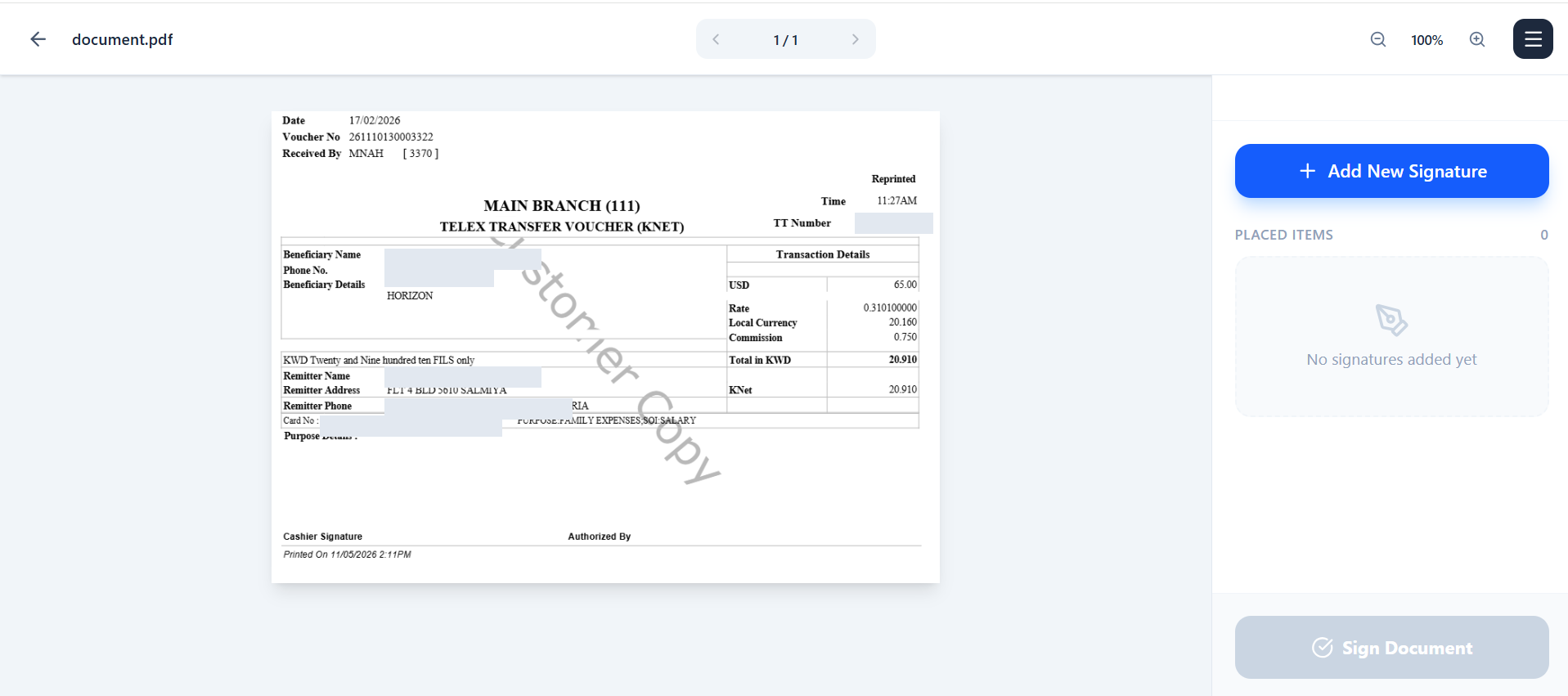
The signing screen lets users place a signature directly on PDF pages. screen

Digital Signing

Screen 13

The signing screen lets users place a signature directly on PDF pages.

The signing interface loads the PDF, allows a drawn or uploaded signature, lets the user place it on pages, and submits the signed file.

The PDF canvas keeps the real document visible while placing signatures.

Users can add, move, resize, and assign signatures to pages.

The final signed document is saved back into the workflow.

Purpose

Signature capture becomes part of the same document lifecycle instead of a separate manual step.

Roles, branches, scripts, and review states keep the process controlled. screen

Operating Model

Screen 14

Roles, branches, scripts, and review states keep the process controlled.

DMS is not only a document viewer. It is an operational workflow that controls who uploads, who reviews, who approves, and how each document is committed to archive.

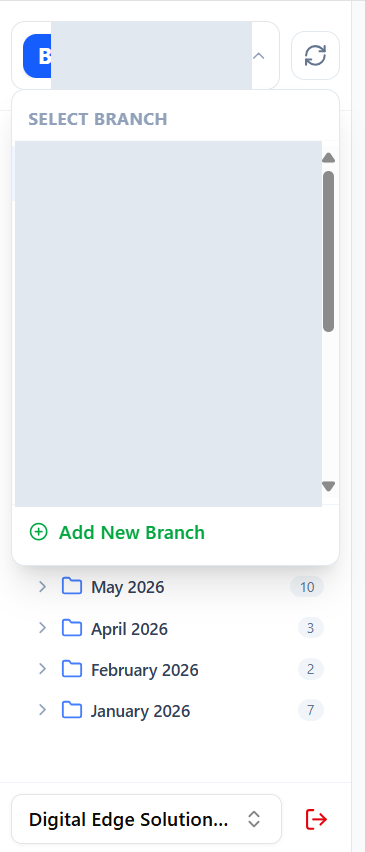
Branch context keeps document ownership aligned with real offices.

Roles decide access to archive, scripts, validation, automation, and branch management.

Statuses make the lifecycle visible: pending, processing, review, approval, archived, rejected, or failed.

Purpose

The same system supports daily operations, audit needs, and future automation growth.

What this app is ultimately for

Modern DMS gives the business one controlled place for document intake, automated extraction, human review, archive approval, search, audit history, and signing. The screens above work together so PDF documents are not just stored; they become verified business records with status, ownership, metadata, and traceability.

Archive

Turns incoming PDFs into reviewed archive records.

Explorer

Finds and opens stored PDFs after processing.

Automation

Connects extraction, validation, approval, and signing.